Chatbots
Create and manage AI assistants, configure their knowledge sources, customize their appearance, and get embed codes for your website.
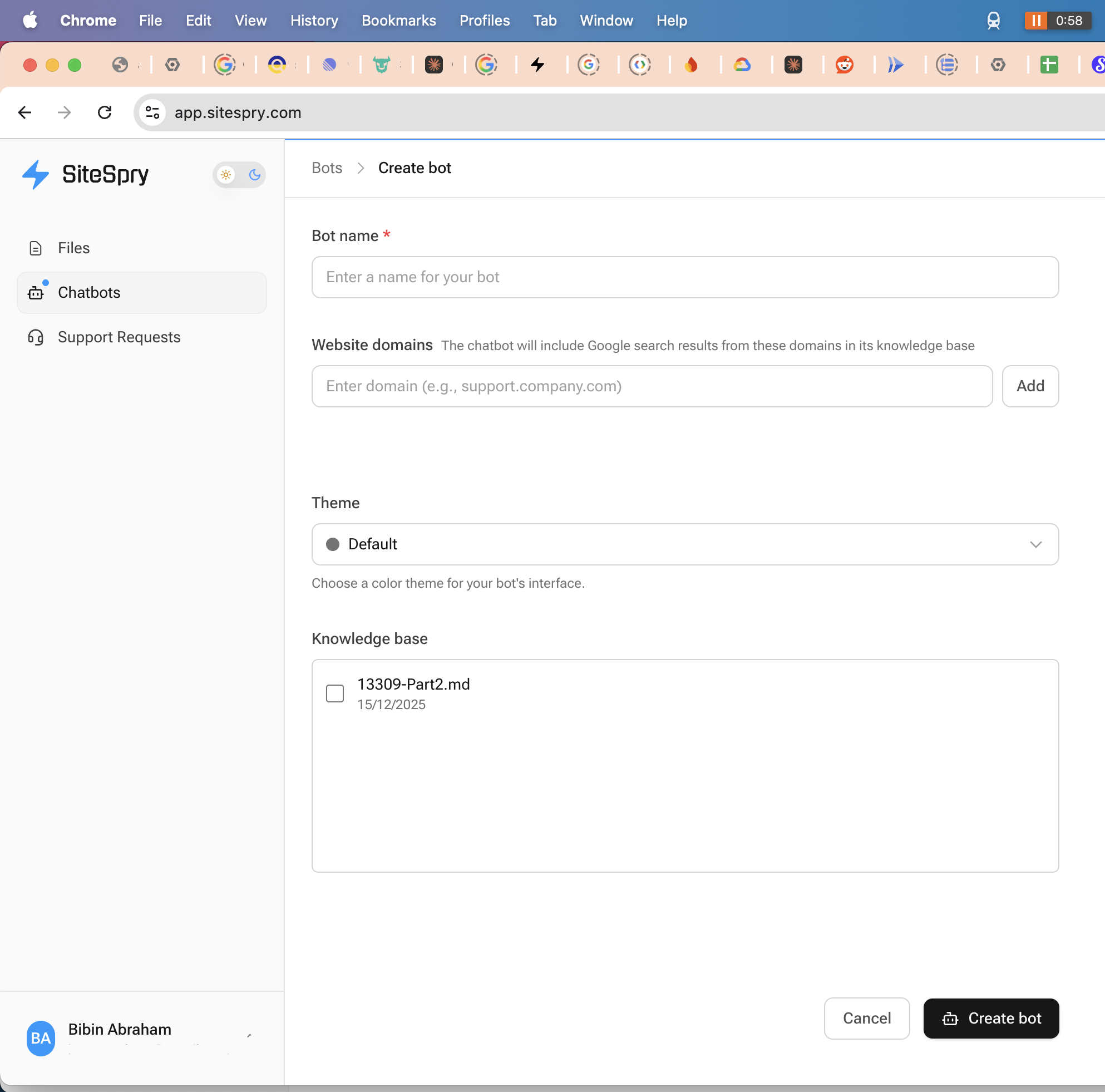
Creating a new chatbot
- 1.Click Chatbots in the left sidebar
- 2.Click Create bot (top right)
- 3.Configure the following:
Bot name *
Enter a descriptive name for your bot (e.g., "Support Bot", "Sales Assistant", "FAQ Bot")
Website domains (optional)
Add domains the bot can reference when answering questions. The bot uses Google search to retrieve content from these domains.
Theme
Select a color theme for the chatbot widget
Knowledge base
Check boxes next to files you want the bot to use when answering questions. You can select multiple files.
Click Create bot to finish.
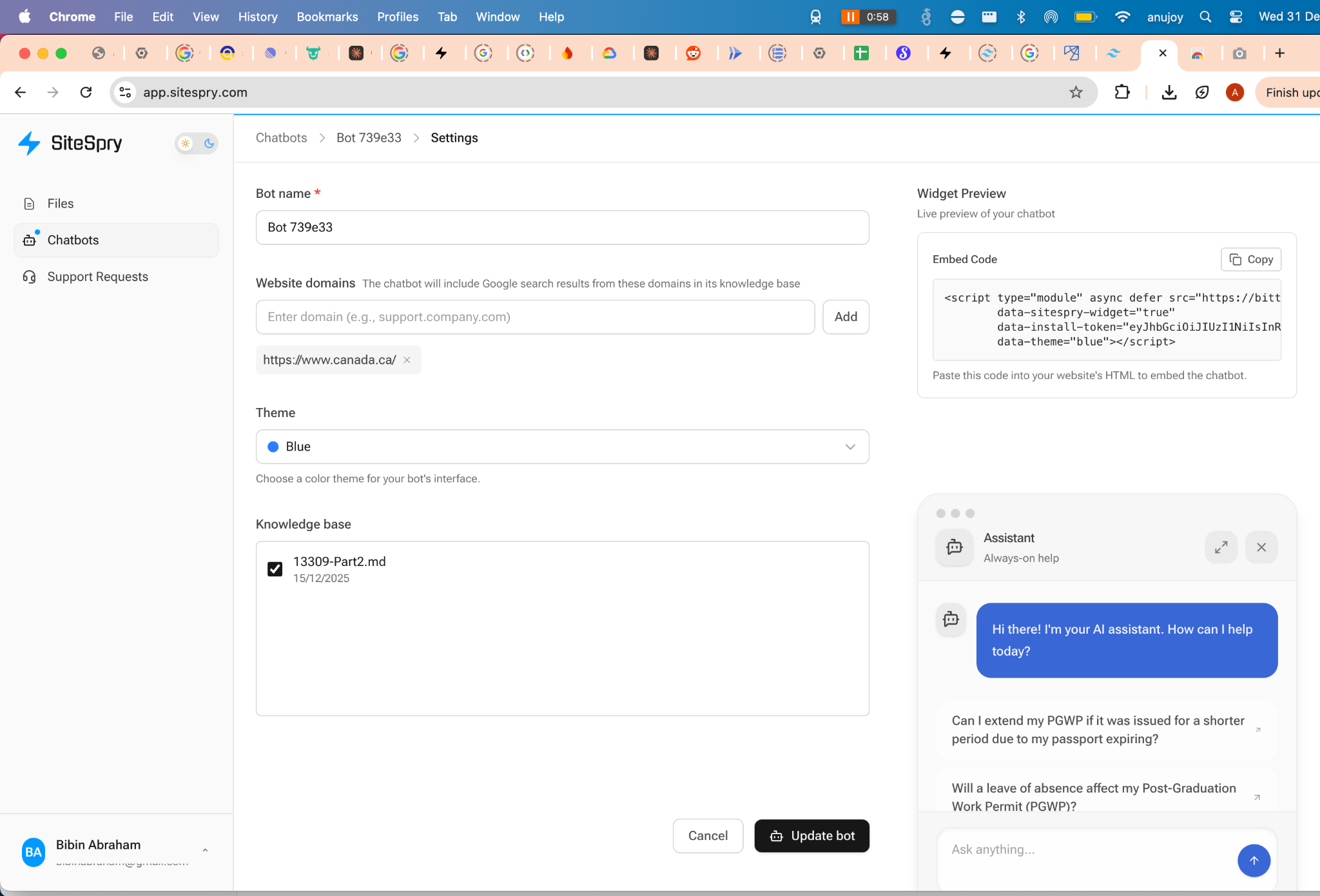
Editing chatbot settings
- 1.Go to Chatbots
- 2.Click Settings next to the bot you want to modify
- 3.Update bot name, domains, theme, or knowledge base
- 4.Use Widget Preview to test the chatbot
- 5.Copy the Embed Code to install on your website
- 6.Click Update bot to save changes
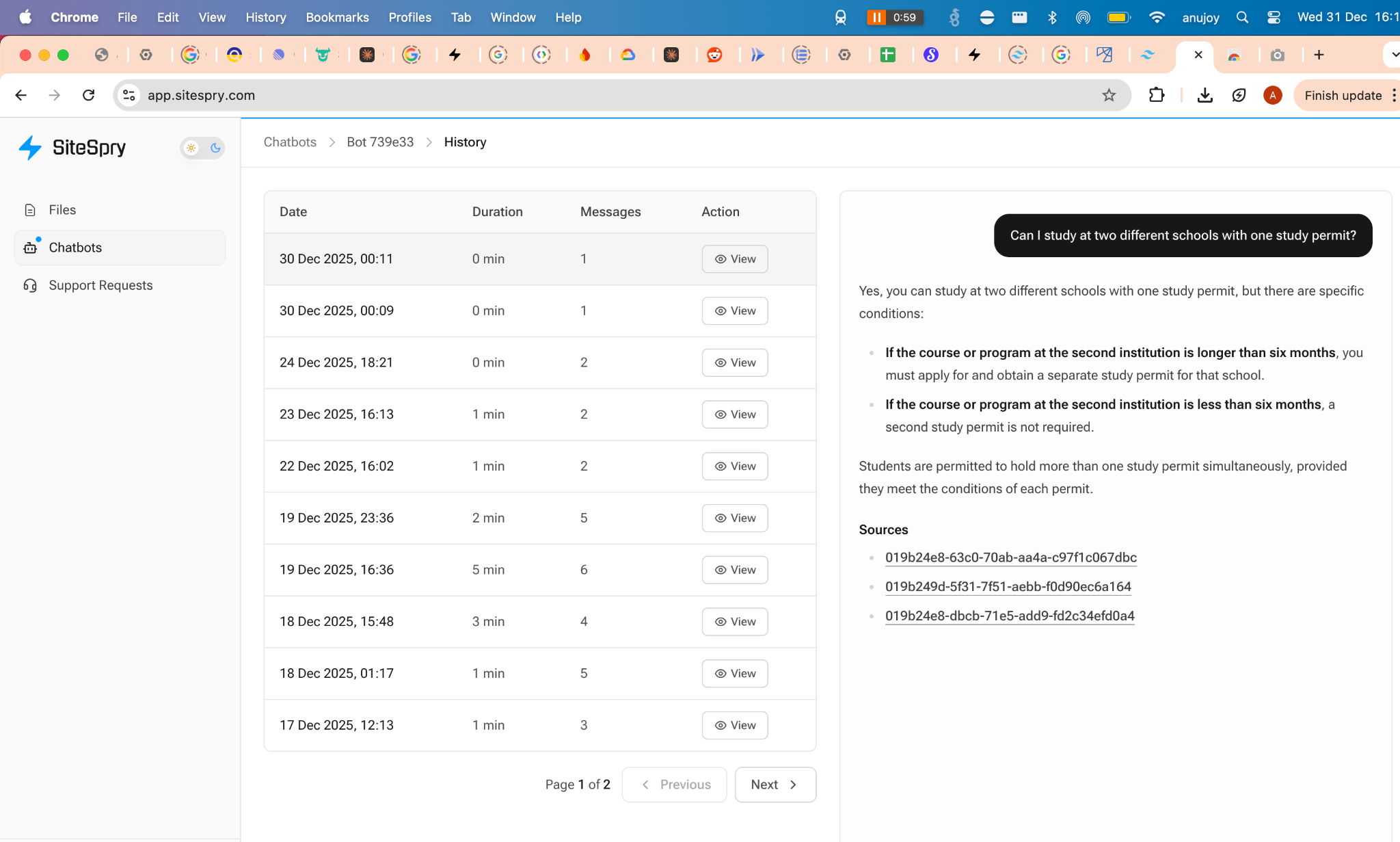
Viewing chat history
- 1.Go to Chatbots
- 2.Click Chat history next to the bot you want to review
- 3.Browse the conversation list and click View to see full transcripts
Use chat history to monitor interactions, identify common questions, and improve your knowledge base.